How to Change Shipping
Label Size in Odoo 18
Inventory
Enterprise
Enterprise
Introduction
In Odoo, there are a variety of different types of shipping labels
that can be selected for delivery orders. Depending on the types of
shipping packages used, different label sizes may be more
appropriate, and can be configured to fit the package.
Enterprise
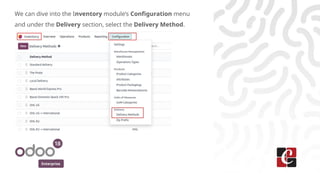
We can dive into the Inventory module’s Configuration menu
and under the Delivery section, select the Delivery Method.
Enterprise
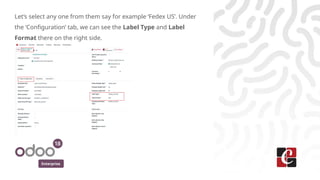
Let’s select any one from them say for example ‘Fedex US’. Under
the ‘Configuration’ tab, we can see the Label Type and Label
Format there on the right side.
Enterprise
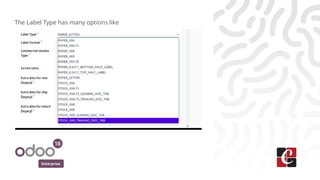
The Label Type has many options like
Enterprise
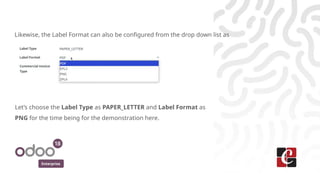
Likewise, the Label Format can also be configured from the drop down list as
Let’s choose the Label Type as PAPER_LETTER and Label Format as
PNG for the time being for the demonstration here.
Enterprise
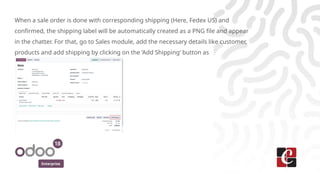
When a sale order is done with corresponding shipping (Here, Fedex US) and
confirmed, the shipping label will be automatically created as a PNG file and appear
in the chatter. For that, go to Sales module, add the necessary details like customer,
products and add shipping by clicking on the ‘Add Shipping’ button as
Enterprise
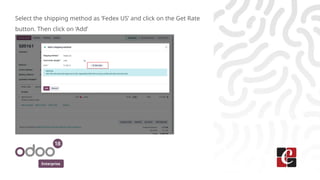
Select the shipping method as ‘Fedex US’ and click on the Get Rate
button. Then click on ‘Add’
Enterprise
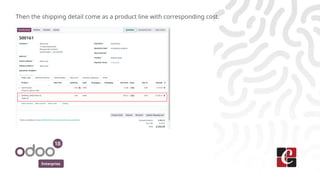
Then the shipping detail come as a product line with corresponding cost.
Enterprise
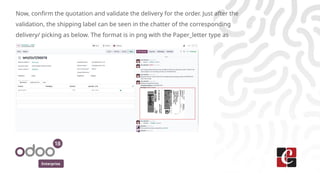
Now, confirm the quotation and validate the delivery for the order. Just after the
validation, the shipping label can be seen in the chatter of the corresponding
delivery/ picking as below. The format is in png with the Paper_letter type as
Enterprise
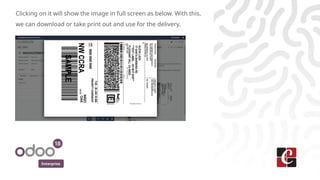
Clicking on it will show the image in full screen as below. With this,
we can download or take print out and use for the delivery.
For More Info.
Check our company website for related blogs
and Odoo book.
Check our YouTube channel for
functional and technical videos in Odoo.
Enterprise
www.cybrosys.com

How to Change Shipping Label Size in Odoo 18 Inventory

  • 1.
    How to ChangeShipping Label Size in Odoo 18 Inventory Enterprise
  • 2.
    Enterprise Introduction In Odoo, thereare a variety of different types of shipping labels that can be selected for delivery orders. Depending on the types of shipping packages used, different label sizes may be more appropriate, and can be configured to fit the package.
  • 3.
    Enterprise We can diveinto the Inventory module’s Configuration menu and under the Delivery section, select the Delivery Method.
  • 4.
    Enterprise Let’s select anyone from them say for example ‘Fedex US’. Under the ‘Configuration’ tab, we can see the Label Type and Label Format there on the right side.
  • 5.
    Enterprise The Label Typehas many options like
  • 6.
    Enterprise Likewise, the LabelFormat can also be configured from the drop down list as Let’s choose the Label Type as PAPER_LETTER and Label Format as PNG for the time being for the demonstration here.
  • 7.
    Enterprise When a saleorder is done with corresponding shipping (Here, Fedex US) and confirmed, the shipping label will be automatically created as a PNG file and appear in the chatter. For that, go to Sales module, add the necessary details like customer, products and add shipping by clicking on the ‘Add Shipping’ button as
  • 8.
    Enterprise Select the shippingmethod as ‘Fedex US’ and click on the Get Rate button. Then click on ‘Add’
  • 9.
    Enterprise Then the shippingdetail come as a product line with corresponding cost.
  • 10.
    Enterprise Now, confirm thequotation and validate the delivery for the order. Just after the validation, the shipping label can be seen in the chatter of the corresponding delivery/ picking as below. The format is in png with the Paper_letter type as
  • 11.
    Enterprise Clicking on itwill show the image in full screen as below. With this, we can download or take print out and use for the delivery.
  • 12.
    For More Info. Checkour company website for related blogs and Odoo book. Check our YouTube channel for functional and technical videos in Odoo. Enterprise www.cybrosys.com