Get Your Copy
How to Create a Landing Page in
Get Your Copy
Step 1: Create your GetResponse Account
Click here to start
or click on the button under the slides*
Get Your Copy
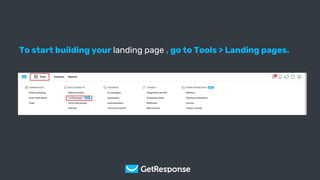
To start building your landing page , go to Tools > Landing pages.
Get Your Copy
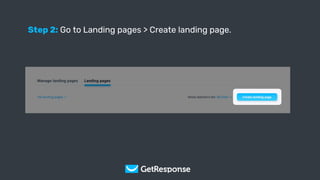
Step 2: Go to Landing pages > Create landing page.
Get Your Copy
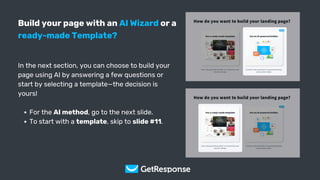
Build your page with an AI Wizard or a
ready-made Template?
In the next section, you can choose to build your
page using AI by answering a few questions or
start by selecting a template—the decision is
yours!
For the AI method, go to the next slide.
To start with a template, skip to slide #11.
Get Your Copy
Step 3: Click on Use an AI-powered builder tile.
Get Your Copy
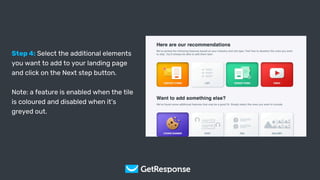
Step 4: Select the additional elements
you want to add to your landing page
and click on the Next step button.
Note: a feature is enabled when the tile
is coloured and disabled when it’s
greyed out.
Get Your Copy
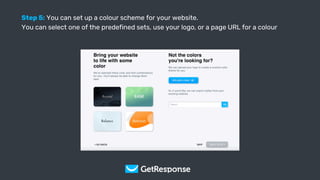
Step 5: You can set up a colour scheme for your website.
You can select one of the predefined sets, use your logo, or a page URL for a colour
Get Your Copy
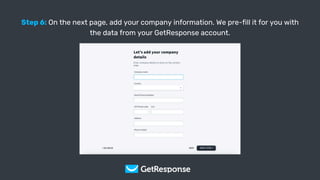
Step 6: On the next page, add your company information. We pre-fill it for you with
the data from your GetResponse account.
Get Your Copy
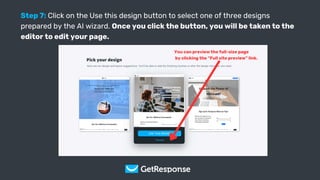
Step 7: Click on the Use this design button to select one of three designs
prepared by the AI wizard. Once you click the button, you will be taken to the
editor to edit your page.
You can preview the full-size page
by clicking the “Full site preview” link.
Get Your Copy
2nd method: Start building your
page with a template
Get Your Copy
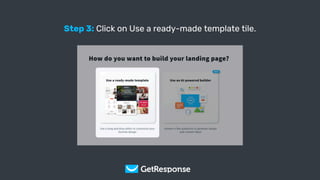
Step 3: Click on Use a ready-made template tile.
Get Your Copy
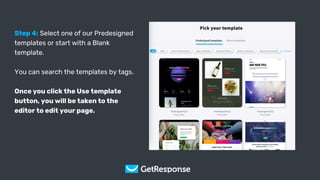
Step 4: Select one of our Predesigned
templates or start with a Blank
template.
You can search the templates by tags.
Once you click the Use template
button, you will be taken to the
editor to edit your page.
Get Your Copy
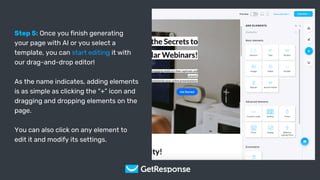
Step 5: Once you finish generating
your page with AI or you select a
template, you can start editing it with
our drag-and-drop editor!
As the name indicates, adding elements
is as simple as clicking the “+” icon and
dragging and dropping elements on the
page.
You can also click on any element to
edit it and modify its settings.
Get Your Copy
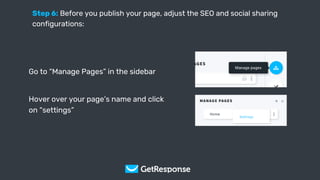
Step 6: Before you publish your page, adjust the SEO and social sharing
configurations:
Go to “Manage Pages” in the sidebar
Hover over your page’s name and click
on “settings”
Get Your Copy
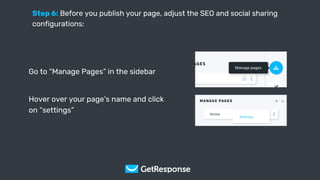
Step 6: Before you publish your page, adjust the SEO and social sharing
configurations:
Go to “Manage Pages” in the sidebar
Hover over your page’s name and click
on “settings”
Get Your Copy
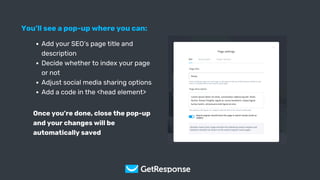
You’ll see a pop-up where you can:
Add your SEO’s page title and
description
Decide whether to index your page
or not
Adjust social media sharing options
Add a code in the <head element>
Once you’re done, close the pop-up
and your changes will be
automatically saved
Get Your Copy
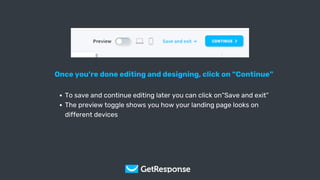
Once you’re done editing and designing, click on “Continue”
To save and continue editing later you can click on”Save and exit”
The preview toggle shows you how your landing page looks on
different devices
Get Your Copy
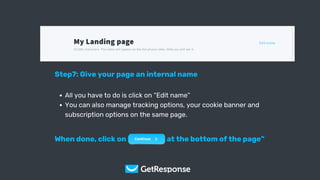
Step7: Give your page an internal name
All you have to do is click on “Edit name”
You can also manage tracking options, your cookie banner and
subscription options on the same page.
When done, click on “Continue at the bottom of the page”
Get Your Copy
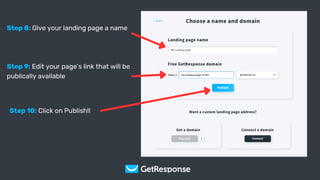
Step 8: Give your landing page a name
Step 9: Edit your page’s link that will be
publically available
Step 10: Click on Publish!!
Get Your Copy
CONGRATS!!
You’ve published your landing
page with GetResponse!
Click here to start
or click on the button under the slides*
Haven’t created your account yet?

How to create a landing page in 10 easy steps with GetResponse

  • 1.
    Get Your Copy Howto Create a Landing Page in
  • 2.
    Get Your Copy Step1: Create your GetResponse Account Click here to start or click on the button under the slides*
  • 3.
    Get Your Copy Tostart building your landing page , go to Tools > Landing pages.
  • 4.
    Get Your Copy Step2: Go to Landing pages > Create landing page.
  • 5.
    Get Your Copy Buildyour page with an AI Wizard or a ready-made Template? In the next section, you can choose to build your page using AI by answering a few questions or start by selecting a template—the decision is yours! For the AI method, go to the next slide. To start with a template, skip to slide #11.
  • 6.
    Get Your Copy Step3: Click on Use an AI-powered builder tile.
  • 7.
    Get Your Copy Step4: Select the additional elements you want to add to your landing page and click on the Next step button. Note: a feature is enabled when the tile is coloured and disabled when it’s greyed out.
  • 8.
    Get Your Copy Step5: You can set up a colour scheme for your website. You can select one of the predefined sets, use your logo, or a page URL for a colour
  • 9.
    Get Your Copy Step6: On the next page, add your company information. We pre-fill it for you with the data from your GetResponse account.
  • 10.
    Get Your Copy Step7: Click on the Use this design button to select one of three designs prepared by the AI wizard. Once you click the button, you will be taken to the editor to edit your page. You can preview the full-size page by clicking the “Full site preview” link.
  • 11.
    Get Your Copy 2ndmethod: Start building your page with a template
  • 12.
    Get Your Copy Step3: Click on Use a ready-made template tile.
  • 13.
    Get Your Copy Step4: Select one of our Predesigned templates or start with a Blank template. You can search the templates by tags. Once you click the Use template button, you will be taken to the editor to edit your page.
  • 14.
    Get Your Copy Step5: Once you finish generating your page with AI or you select a template, you can start editing it with our drag-and-drop editor! As the name indicates, adding elements is as simple as clicking the “+” icon and dragging and dropping elements on the page. You can also click on any element to edit it and modify its settings.
  • 15.
    Get Your Copy Step6: Before you publish your page, adjust the SEO and social sharing configurations: Go to “Manage Pages” in the sidebar Hover over your page’s name and click on “settings”
  • 16.
    Get Your Copy Step6: Before you publish your page, adjust the SEO and social sharing configurations: Go to “Manage Pages” in the sidebar Hover over your page’s name and click on “settings”
  • 17.
    Get Your Copy You’llsee a pop-up where you can: Add your SEO’s page title and description Decide whether to index your page or not Adjust social media sharing options Add a code in the <head element> Once you’re done, close the pop-up and your changes will be automatically saved
  • 18.
    Get Your Copy Onceyou’re done editing and designing, click on “Continue” To save and continue editing later you can click on”Save and exit” The preview toggle shows you how your landing page looks on different devices
  • 19.
    Get Your Copy Step7:Give your page an internal name All you have to do is click on “Edit name” You can also manage tracking options, your cookie banner and subscription options on the same page. When done, click on “Continue at the bottom of the page”
  • 20.
    Get Your Copy Step8: Give your landing page a name Step 9: Edit your page’s link that will be publically available Step 10: Click on Publish!!
  • 21.
    Get Your Copy CONGRATS!! You’vepublished your landing page with GetResponse! Click here to start or click on the button under the slides* Haven’t created your account yet?